Changelog

What's new in Demoloop

Every improvement we ship to the agent that demos your product, newest first.

Hand a lead off to Telegram, seconds after the demo

New

A lead who just asked for a human should not wait for someone to open their inbox. Telegram is now a destination your automations can post to, next to email and webhooks.

  • Two taps to connect. Add a Telegram destination, pick your own chat or a team group, and follow the steps there. The page notices on its own, no IDs or tokens to copy anywhere.
  • A new Telegram step for your flows. Drop it wherever a hand-off happens and choose the chat it posts to, or every active chat you have connected.
  • The same three messages you already send. An alert with a note you write, a hand-off request with the reason and the session recap, or the lead's full hand-off details. Choose one per step.
  • Check it before you trust it. Send a test message from the destination and see exactly what lands in the chat.
  • It shows up in the run. A step that posted reads as "Posted to Telegram" on the run timeline, so you can tell a delivered hand-off from a missed one.

Your follow-up emails sign off like a person sent them

New

A prospect reading a follow-up should know who it came from. The senders page is now Senders and signatures, and each sender carries a sign-off that lands under the body of every email it mails.

  • Fill in fields, not a text box. Full name, job title, company, phone, and up to four named links. Point them at LinkedIn, a booking page, or wherever you want the lead to go next.
  • Two switches for the rest. Add your company logo, using the one already on your branding settings. Add the reply address, printed straight from the inbox replies land in, so the two can never disagree.
  • See it before you save it. The editor renders a real sample email beside the fields as you type, exactly as a lead receives it.
  • One edit signs everything. Templates you wrote yourself and the emails that ship with Demoloop, the demo wrap-up and both follow-ups, are all signed from the same place. A send step with no sender picked sends exactly what it sent before.
  • Switching it off keeps your words. Turn the signature off and the text you typed is still there when you turn it back on.

Write follow-up emails with real formatting

Improved

Your own email templates were plain text, so a follow-up could say anything but could not stress any of it. They are now written in a proper editor.

  • Formatting that survives the send. Headings, bold, italic, underline, strikethrough, bulleted and numbered lists, quotes, code, dividers, and links, styled so they land the same way in the inbox as they look while you write them.
  • Variables work exactly as before. Click a variable in the sidebar and it drops in at your cursor, fallback and all.
  • Your existing templates came along. Every template you had already written was converted for you, paragraph breaks intact, and it reads and sends the same as it did.
  • Translations keep the formatting. Generate the other languages and the headings, lists, and links come through with them.
  • No images, on purpose. A template is text and formatting, so it stays light and readable in any inbox.

Your demo now speaks eleven more languages

New

A demo used to speak whatever language your team spoke. Now it can speak your prospect's.

  • Eleven new languages. Portuguese, Italian, Dutch, Polish, Japanese, Korean, Chinese, Arabic, Turkish, Russian, and Swedish join English, Spanish, French, German, Hindi, and Ukrainian.
  • A real voice, not a translation layer. Each language has its own native voice, so the demo sounds like a person speaking the language rather than a dub.
  • Pick it from the same dropdown. Choose a language when starting a demo, same as before, just with a lot more options in the list.

The copilot sits beside your work instead of on top of it

Improved

The copilot used to slide over the very page it was editing, and a tap of Escape or a stray click anywhere outside it closed the panel and took the conversation with it. It now has its own sidebar.

  • Side by side, not on top. The copilot docks beside your agent's tabs or your automation canvas, so you watch each edit land as it replies instead of closing the chat to go and look.
  • Only you close it. No Escape, no click outside. The close button in its header is the one way out, so a misplaced click no longer costs you the chat.
  • It stays where you left it. Switch tabs, reload the page, or come back through a link, and the copilot is still open on the thing you were working on.
  • Your width, remembered. Drag the handle to give the chat or the page more room. That width comes back next time, on every agent you open the copilot on, and on every flow.
  • Narrow windows still work. Below a certain width the panel covers the page rather than squeezing both, and still closes only on its own button.

Pick how your demo looks before it starts

New

Every demo opens on an intro screen carrying your headline and a welcome message. How that screen looked used to be decided for you. Now it is a setting.

  • Three generated styles. Dark, light, or teal artwork built around your agent and your headline. Switch between them and the preview redraws before you have saved anything.
  • Or bring your own. Upload a hero image and it is shown exactly as you uploaded it. Your headline and welcome message are kept while it is in use, so switching back to a generated style finds them still there.
  • The preview is the real thing. It is the same image your visitors and your recordings get, rendered the same way, not an approximation of it.

Support sessions stopped borrowing the sales experience

Improved

Support sessions arrived recently running on top of the sales flow, which meant they described the person you were helping as a lead and summarised the call as if you were trying to close them. That is fixed.

  • The goal is on screen. As soon as the agent works out what the customer came for, it appears on the session card, so anyone watching knows what is being worked on.
  • Solved is confirmed, not assumed. The agent checks the problem is actually fixed before it wraps up, and every session is recorded as resolved, unresolved, or escalated to a person.
  • A recap written for support. The summary answers what the customer wanted and whether they got it, instead of scoring them as a sales prospect. Hand-off alerts to your team read the same way.
  • The right words throughout. Session pages, notifications, and the viewer stopped calling the person you just helped a lead.
  • Arrive already recognised. Pass a customer's email and language in the link and they go straight in, in the language they read. Anyone who would rather type than talk can open directly into chat.

Demos start more often and pause less

Improved

Two things quietly ruin a live demo: a product that will not load for the agent, and a long silence after the visitor stops talking. Both got attention this week.

  • Sites that used to block the agent now let it through. Some products treat automated browsing as suspicious and served the agent a block page instead of your app. It now presents itself the way an ordinary browser does, so those demos run.
  • Shorter gaps between turns. The agent starts preparing its next reply while it is still speaking the current one, so the pause after a visitor finishes talking is noticeably shorter.
  • A stuck page is no longer the end. When a page will not come back, the agent reloads it and carries on instead of stalling in front of the visitor.
  • Clean endings. A finished demo closes straight away rather than lingering on screen.

Your automatic emails are now workflows you own

New

The emails sent after a demo used to be a fixed set behind on and off switches, and the rules that decided when they went out were invisible. The wrap-up only sent when a visitor had really engaged with the agent. The team alert quietly stepped aside when you had a booking link, because the visitor could book a time themselves. Both were true, and nothing on screen said so.

Those follow-ups are now Automations: flows already sitting in your workspace, sending exactly what they sent before until you decide to change them.

  • Every rule is now on the canvas. Open a flow and the conditions that used to live out of sight are drawn where they apply: the ones deciding who enters sit on the trigger, the ones choosing a path sit on the split. All of them readable, all of them yours to rewrite.
  • Build with steps, not switches. Wait for a set time, send an email, tag the lead, set their temperature, split the flow down different paths, call a webhook, alert your team, or stop.
  • Split on what you actually know. Whether the lead is hot, warm or cold, whether the demo qualified them, whether they asked for a human, how much they talked to the agent, which agent ran the demo, what language it was in, the rating they left, whether this was their first demo, and any tags you have given them. A path can test one thing, or several joined by and, or several joined by or.
  • Watch every run. See which leads are in a flow right now, the step each one is on, and the full history of what happened to them, right down to which email went out and when. A lead's page shows every flow they have been through.
  • Tag as you go, then filter by it. A flow can tag a lead as it runs, and your demos list can be filtered by those tags.
  • Nothing changes until you say so. Your existing follow-ups keep sending exactly as they always have. The one genuinely new flow, a longer nurture sequence, ships turned off so you can look at it first.

Call your own systems, but only when it matters

New

A webhook that fires on every demo is noise. Now a webhook is a step inside a flow, which means it only fires for the leads that actually got there.

  • Put it behind any condition. Push to your CRM only for qualified leads. Ping your team only when someone asked for a human and you have no booking link for them. Anything you can branch on, you can gate a webhook on.
  • Send to the destinations you already set up. A step can hit one named destination or every enabled one, so adding a destination later does not mean editing your flows.
  • Alert people, not just systems. A team alert step emails your workspace, or a specific inbox you have configured, with the context from the demo that triggered it.
  • Exactly once, even when things go wrong. A step that has already fired will not fire again if the flow is retried, so nobody gets paged twice for the same lead.

React to what your emails actually do

New

Sending a follow-up was the end of the story. Now what happens to that email comes back and becomes the next decision in the flow.

  • Send, wait, then branch. Send an email, wait two days, and take one path if they clicked and another if they did not. The check always refers to the last email that flow sent, so a later send starts the question fresh.
  • Delivered, opened, clicked, bounced, marked as spam. All five are available as conditions.
  • Bad addresses drop out on their own. If an address hard bounces or someone marks a message as spam, that lead leaves every running flow immediately, so you stop mailing an address that is provably unreachable.
  • Worth knowing about opens. Many mail clients block the tracking that reports an open, so an unopened email is a hint rather than proof. Use it to add a nudge, not to write a lead off.

Write your own follow-up emails

New

Your flows send your words now. There is a template library in the dashboard where you write the subject and the body, and drop in variables that fill themselves from the demo.

  • Variables that cannot break a send. Click a variable to insert it, and give it a fallback for the times it comes back empty. A missing first name becomes the wording you chose instead of a follow-up that never goes out.
  • Every language your demos run in. Write the email once and it is translated into the other languages automatically. Read each version, edit it by hand, or have it rewritten, and the flow picks the one matching the language the demo was in.
  • Stale translations are obvious. Change the original and every translated version is flagged so you know what to refresh.
  • See what depends on a template. Each one shows how many automations send it, and the list opens straight into those flows, so you know what you are about to affect before you change or retire it.
  • Replies now reach you. Set a sender with your team's display name and a real reply address. Before this, a prospect who simply hit reply was writing into the void.
  • Try it before it goes out. Send yourself a test with real values filled into each variable, so you see the email exactly as a lead would.

Describe a follow-up and the copilot builds it

New

Building a flow step by step is fine once you know what you want. Getting to that point is faster if you can just say it. The copilot that already edits your agent now works on your automations too.

  • Say it in plain words. "Wait two days, then email anyone who did not book a time, and tag them for the sales team." The copilot lays out the steps and writes the email copy to go with them.
  • Start from nothing. A blank automation now opens genuinely empty, with a "Create with AI" shortcut on it, so you can describe the whole flow instead of dismantling a default one first.
  • Watch the canvas change. Each edit lands on your flow while the copilot replies, so you can correct it in the same conversation rather than starting over.
  • From your own AI tools too. Your automations, email templates and senders are all available through our MCP server, so the assistant you already use can build and edit them on your behalf.

Your copilot learns from real demos

Improved

The copilot that edits your agent can now look at what actually happens in your demos. Ask it what visitors want, and it reads your past demo sessions and their full transcripts before it suggests a change.

  • Grounded in real conversations. It can spot the questions that keep coming up in your demos and turn them into a new FAQ, a sharper pitch, or a clearer feature story.
  • Just ask. "What are visitors asking about?" is enough to get started.
  • From your own AI tools too. The same demo transcripts are available through our MCP server, so your own AI assistant can read them on your behalf.
  • Scoped to the agent you are editing. The copilot only ever sees the demos for the agent you have open.

Edit your agent by asking

New

Polishing an agent used to mean hunting through configuration tabs. Now every agent has a copilot built into the dashboard: open the chat, say what you want in plain words, and it makes the change for you while you watch. No setup and nothing to connect.

  • Ask, don't configure. "Make my pitch punchier", "add an FAQ about pricing", "reorder the features on this page": the copilot updates your pitch, welcome screen, pages, demo flows, FAQs, qualification questions and materials for you.
  • See every edit as it happens. The copilot shows each change while it replies, and the agent's tabs update live behind the chat.
  • Safe to experiment. Every edit lands in your agent's version history, so you can review it and roll back anytime.
  • Pick up where you left off. Your copilot chats are saved to your account, private to you, so you can reopen a past conversation and keep refining.
  • The natural next step. Right after your first agent is created, onboarding points you to the copilot to personalize it.

Customer support is here

New

The agent that gives your demos can now run support too. Point it at your existing customers and it works as a live helpdesk instead of a sales pitch.

  • Answers, not articles. Customers ask in plain words and the agent replies out loud, then shows them where things are in your product.
  • Grounded in your docs. Every answer comes from your own materials and live app, so it stays accurate and sounds like you.
  • Always on, every language. No queue and no business hours. It helps in whatever language your customer speaks, and points them to your team when it cannot resolve something.
  • Share it anywhere. Drop the link in your help center, your onboarding emails, or the Help menu inside your product.

Live demos ride out AI provider outages

Improved

A live demo is a live conversation, and it cannot go silent mid-sentence. Now, if the AI provider powering the agent has an outage or slows down, the demo automatically switches to a backup provider and keeps going instead of stalling.

  • No dead air. When the AI provider hits a snag, the agent automatically falls back to another one for that reply and carries on, so the visitor keeps hearing a natural back and forth.
  • Nothing for you to configure. The failover happens automatically behind the scenes, no changes needed on your end.
  • Only when it actually helps. The switch happens for a genuine service problem, never when a visitor talks over the agent or ends the demo early.

Your agent keeps answering after the demo ends

New

Not every question comes up while the demo is playing. When it is over, visitors can now keep the conversation going in writing with the same agent that just walked them through your product.

  • A chat right where the demo ends. When a demo finishes, the visitor gets a "Do you have more questions?" card and can ask, in writing, about pricing, features, next steps, or anything else, and the agent answers from what it showed them live.
  • Pick it back up from the email. Add a chat link to the wrap-up email and the visitor can return to the conversation whenever a new question comes up. Turn the link on or off for your workspace.
  • See what they asked. Every follow-up chat shows up on the demo, so your team can read exactly what a visitor wanted to know after the call.

Hand a hot demo off to your team

New

Some visitors are ready to talk to a real person before the demo is over. Your agent can now spot that moment, when someone asks for a human or shows they are ready to buy, and hand them straight to your team.

  • A booking link, right in the demo. Add a scheduling link and the visitor gets a "Talk to a human" card mid-demo, plus a booking prompt in their wrap-up email.
  • No link? Your team gets the lead. Without a scheduling link, everyone on your team gets an email with the visitor's details and why they asked for a human, and a plain reply goes straight back to them.
  • On when you want it. Turn the handoff on per agent in its settings, and add a scheduling link if you have one.

Your demo now tailors the pitch to each visitor's company

New

When someone kicks off a live demo with a work email, your agent now does a little homework on their company first and tailors the walkthrough to it, instead of running the same generic pitch for everyone.

  • A pitch that fits the visitor. The agent speaks to their industry, their size, and what their company actually does, and reaches for examples that land.
  • Upfront about it. If a visitor asks how it knows, the agent is honest that it looked their company up from their email address. No pretending.
  • Personal emails stay personal. A visitor who signs in with a personal address just gets the standard demo, with no lookup.

Demo your product behind the login, no cookies required

New

Most products worth demoing sit behind a login. Getting the agent in there used to mean copying a session out of your own browser and pasting it across. You can skip all that now: give the agent a demo account and it logs itself in.

  • A username and password is enough. Point the agent at your login page, give it a demo account, and it signs in when the demo starts and rides that session until it expires.
  • Cookies haven't gone anywhere. Still want to paste a session, or seed something like a cookie banner? That works, on its own or alongside a login.
  • Try it before anyone else does. Run a login from the website settings and get a screenshot back of where the agent landed.
  • You hear about it if it breaks. When a saved login stops working, we flag it so you can fix it ahead of the next demo, not in the middle of one.

One catch: use a dedicated demo account. Two-factor auth, SSO, and CAPTCHA won't work.

Your stored login details are now encrypted at rest

Improved

Anything you store so a demo can reach your real app now gets encrypted at rest: cookies, the browser session, the login password.

  • It is sealed in our database, not sitting there in plain text.
  • Your cookies and session go straight to the demo browser, and the AI model never sees them.
  • A plain note next to the fields spells out exactly how it is handled.

Closed captions in live demos

New

Viewers can now switch on captions during a live demo. The agent's words appear in time with its voice, so anyone can follow along with the sound off or in a noisy room.

  • Off by default, one click to turn on from the player.
  • Captions appear word by word in sync with the audio, not dumped all at once.
  • They follow whatever language the demo is running in.

A smoother dashboard, now on mobile

Improved

A round of polish across the app.

  • A native-style bottom navigation bar on mobile, so the dashboard finally feels at home on a phone.
  • The demo detail header stays put as you scroll, so you never lose track of which demo you are reading.
  • We chased down the scroll flicker on the demos and leads pages.

Know which leads are worth chasing

New

Every lead now gets scored automatically from how the demo actually went, so you can see who to call first without rewatching a thing.

  • Hot, warm, cold, or disqualified, set from the conversation rather than a guess.
  • A real lead profile built from what the visitor said, with fields you can edit.
  • One page per lead with the demos, the email history, and a full activity timeline side by side.

The agent now points as it explains

Improved

Live demos feel more like a person walking you through the product.

  • The agent circles and highlights what it is talking about, up to a few elements in sequence.
  • It runs complete steps end to end, search, submit, and the result, instead of half-typed fragments.
  • Moving between pages no longer flashes white, so the walkthrough stays smooth.

Find anything with Cmd+K

New

A new command palette puts your whole workspace a keystroke away. Hit Cmd+K to jump between pages, search leads and IDs, and pick up recent searches where you left off.

Replay and rate demos at a glance

Improved

The demos list does more without making you click.

  • Hover to play a video preview, with full play, pause, speed, and seek controls.
  • Cleaner columns with demo duration as a relative bar, a star rating, and locale flags carrying descriptive tooltips.
  • Running now shows live demos as they happen, right in the sidebar.

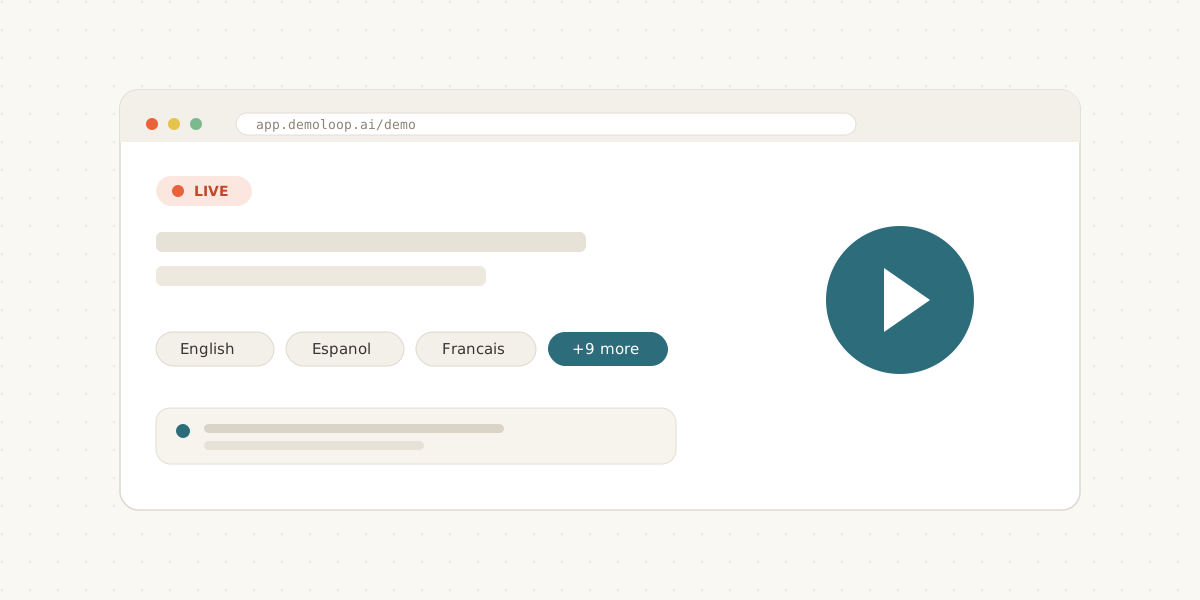
Live demos now speak Spanish and French

New

Your demos are no longer English-only. Demoloop runs the whole walkthrough, voice and all, in Spanish and French as well as English.

A live Demoloop walkthrough running inside a browser window

What this unlocks:

  • Reach more visitors. Each viewer picks English, Spanish, or French on the demo start screen.
  • Native voice, not subtitles. The agent talks, qualifies, and answers questions out loud in the chosen language.
  • Localized wrap-up email, sent in the same language the demo ran in.

Type to the agent when you cannot talk

New

Not everyone can use a mic in an open office. Visitors can now type a message into a live demo and the agent answers in the same flow, no headset required. The demo also ends the moment the viewer closes the tab.

From signup to live, guided the whole way

New

Setting up your first agent is now a guided path: add your website, build the agent, test it, and go live, with a checklist that follows you across the dashboard.

When you are ready, a dedicated deploy hub hands you a share link, a downloadable share image, and copy-paste embed snippets for React, an iframe, or a plain link.

Try it live on your own site

New

Curious prospects can now drop in their website URL and watch a live agent demo their own product in seconds. It is the fastest way to feel what Demoloop does without booking a call.

Edit your agent from your own AI tools

Improved

Our MCP server is now open to everyone, with the full agent toolbox behind it.

  • Spin up agents and websites, edit demo flows, FAQs, and materials, and read leads from your own AI assistant.
  • Switch between workspaces from a single connection.
  • Every change lands in a customer-facing activity log, and each edit is version-snapshotted so you can review the history and roll back from the dashboard.

Open signups and magic-link login

New

Getting into Demoloop just got easier.

  • Signups are open. No invite required.
  • Magic-link login. Skip the password and sign in straight from your inbox.
  • New accounts open on a welcome screen that explains what to do first.

See which features your demos show most

New

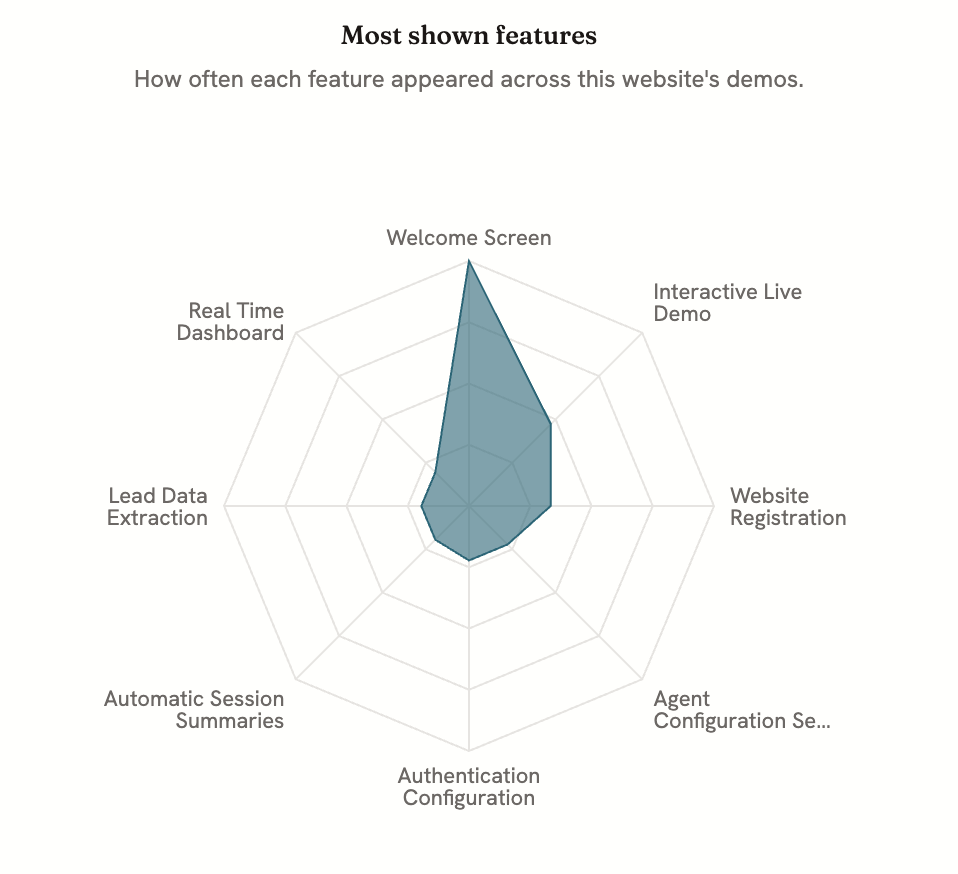
Open any website and the new Features tab shows which product features your demos actually put in front of visitors, ranked by how often each one came up.

A radar chart titled "Most shown features" plotting how often each feature appeared across a website's demos

  • A radar chart for the shape. Your top features plotted together, so you can read what your demos lean on in one look.
  • The full ranked list. Every feature shown sits below the chart with its count, and each one links straight to that feature.
  • In the websites table. Most shown features now sit next to each website, so you can compare coverage across sites at a glance.

Share a demo recap with one link

New

Every demo can now be shared through a single private link, and that link rides along in every wrap-up email.

  • Prospects and teammates revisit exactly what was shown, no account needed.
  • The link is unguessable, so only the people you send it to can open it.
  • Previously only our own demos linked the recap. Now all of them do.

Demos that match the moment

New

One agent, more ways to run it.

  • Feature focus. Point a prospect straight at a single capability with its own share link.
  • Support mode. Run the agent as a reactive helpdesk instead of a guided pitch.
  • Voice tone. Shape how the agent sounds so it fits your brand.

Send new leads where your team works

New

New-lead alerts now go where you actually look.

  • Route them to any email address you choose.
  • Pipe them into your own systems with signed webhooks.
  • We also lowered the alert threshold, so you hear about a promising lead sooner.

Demos remember returning visitors

New

When a visitor comes back for another demo, the agent now picks up where they left off instead of starting cold. It welcomes them back, remembers what they shared last time, and uses the time saved to go deeper or get into the product faster.

  • No more repeating yourself. The agent skips questions it can already answer from a previous demo, and at most lightly reconfirms a detail that might have changed.
  • Honest about what it remembers. If a visitor asks how it knows something, the agent says it has notes from their last demo, and anything they say this time takes priority over those notes.
  • Your private notes stay private. Notes your team writes on a lead in the dashboard are never spoken back. The agent only brings up what the visitor told it.

Faster voice, snappier turns

Improved

Conversations feel noticeably more natural this release. We trimmed the time between a visitor finishing a sentence and the agent starting to speak, so the back-and-forth lands closer to a real call.

A longer action like loading a page or running a search now keeps going in the background while the agent keeps talking, so the conversation does not stall waiting for the screen to catch up.

MCP server and follow-up email fixes

NewFixed

You can now wire Demoloop into your own tools through our MCP server, so an assistant can spin up agents, edit demo flows, and read leads on your behalf.

We also fixed a couple of rough edges:

  1. Wrap-up emails sometimes dropped the materials the agent mentioned during the demo. They are always attached now.
  2. The recap link occasionally pointed at the wrong demo. Fixed.